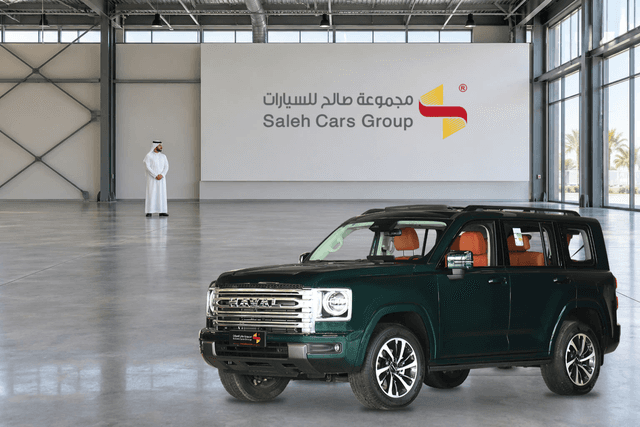
Haval Models 2026 and 2027: Trims, Specs and Who They Suit
Table of Contents:
|
The Haval models 2026 and 2027 on our site are six SUVs and crossovers: the JOLION and H6 for city use, the V7 and H7 with a 2 L turbo and four-wheel drive, and the seven-seat H9 and TANK 500 for large families and the desert. We cover the specs of each, who it suits and how to compare trims. For all the brand’s listed cars, browse Haval cars.
Which Haval Models 2026 and 2027 Are Listed on Our Site?
Six models from Haval are listed on our site: the V7, H7, H6, JOLION, H9 and TANK 500, with model years from 2025 to 2027 depending on the model. Haval is a Chinese car brand that specialises in crossovers and SUVs. This list reflects what is listed on salehcars.com as of November 2026; the specs in the table belong to the trim named in it and vary by trim and model year, and the car page shows the exact trim and its current price.
| Model | Listed years | Trim in table | Engine | Power (HP) | Torque (Nm) | Seats | Drive | Economy (km/L) |
| V7 | 2026 and 2027 | Premium 2027 | 2 L turbo petrol | 228 | 380 | - | Four-wheel | 14.9 |
| H7 | 2027 | Full Option 2027 | 2 L turbo petrol | 228 | - | 5 | Four-wheel | 15.2 |
| H6 | 2025 and 2027 | Premium 2027 | 2 L | 234 | 385 | - | Front-wheel | - |
| JOLION | 2027 | MAX 2027 | 1.5 L turbo petrol | 174 | 275 | 5 | Front-wheel | 18.5 |
| H9 | 2025 and 2026 | Mid-Full Diesel 2026 | 2.6 L diesel | 181 | 480 | 7 | Four-wheel | 12.4 |
| TANK 500 | 2026 | Rock Edition 2026 | 3 L turbo petrol, 6 cylinders | 348 | 500 | 7 | Four-wheel | 11.9 |
A dash (-) means the listing does not give the value or it needs checking on the car page. Every trim in the table has an automatic transmission (gearbox), except the H7 with a dual-clutch DCT, and the H6, whose listing does not state the gearbox type.
Which Haval Suits the City and Daily Use?
The JOLION and H6 are the two models listed with front-wheel drive in their representative trims, and they are the closest fit for daily driving in the city.
The JOLION is a compact five-seat crossover, and its MAX 2027 trim has a 1.5 L four-cylinder turbo petrol engine producing 174 HP and 275 Nm, an automatic transmission and fuel economy of 18.5 km/L, the highest among the trims in the table. Its listing names a panoramic roof, adaptive cruise control, forward collision warning, blind-spot information, a 12.3 inch touchscreen, a 50 W wireless charger and rear storage of up to 1175 L with the seats folded. Its two listed trims are Active Plus and MAX 2027, and it suits buyers who want a fuel-efficient car for commuting and errands. Details are on the Haval JOLION page.
The H6 is an SUV, and its Premium 2027 trim has a 2 L four-cylinder engine producing 234 HP and 385 Nm, front-wheel drive and 19 inch wheels. Its listed equipment includes a panoramic roof, adaptive cruise control, forward collision warning, blind-spot information, ventilated and heated seats, a power tailgate, a 14.6 infotainment screen with a 10.25 instrument display, and two-zone voice recognition. The listing does not give the fuel economy or the transmission type, so check both on the Haval H6 page. Its listed trims are GT 2025 and Premium 2027.
What Are the Haval V7 Specs and How Does It Differ From the H7?
The V7 and H7 both have a 2 L four-cylinder turbo petrol engine producing 228 HP and four-wheel drive in their listed trims, and they differ in transmission, driving modes and the equipment each listing names.
The V7 is listed for 2026 and 2027 in the Premium trim, and the Premium 2027 trim has 380 Nm of torque, an automatic transmission and four-wheel drive with normal, sport, sand, snow and mud driving modes, 19 inch wheels and fuel economy of 14.9 km/L. Its listing names a panoramic roof, forward collision warning, ventilated seats, a 15.6 inch touchscreen, an 8-way power driver’s seat with memory, and acoustic glass in the windscreen and front doors. The listing does not give the number of seats. Details are on the Haval V7 page.
The H7 is listed in the Full Option 2027 trim, with a dual-clutch DCT gearbox, four-wheel drive, five seats, 19 inch wheels and fuel economy of 15.2 km/L. Its listing names adaptive cruise control, leather seats with ventilated front seats, an 8-way power driver’s seat with memory, a 15.4 inch touchscreen, a wireless phone charger and a 10-speaker sound system. The listing does not give the torque figure. See the Haval H7 page.
In short, the V7 suits buyers who often head out to the desert, since its listing names sand and mud modes, while the H7 suits buyers who want four-wheel drive in a Full Option trim with similar fuel economy. Compare the two on a test drive before deciding.
Which Seven-Seat Haval SUVs Suit Large Families and Travel?
The H9 and TANK 500 are listed on our site in seven-seat trims with four-wheel drive, so they suit large families, travel between cities and desert trips.
The H9 is a large SUV, and its Mid-Full Diesel 2026 trim has a 2.6 L four-cylinder diesel engine producing 181 HP and 480 Nm, an automatic transmission, four-wheel drive, 18 inch wheels and fuel economy of 12.4 km/L. Its listing names smart entry, a 14.6 inch infotainment screen, a 10.25 inch digital instrument display, a sunroof, an air and dust filter and three-zone automatic air conditioning. Its listed trims are HIGH for 2025 and 2026, and Mid-Full Diesel 2026. Details are on the Haval H9 page.
The TANK 500 is a large SUV, and its Rock Edition 2026 trim has a 3 L six-cylinder turbo petrol engine producing 348 HP and 500 Nm, the highest figures in the table, with an automatic transmission, four-wheel drive, 19 inch wheels and fuel economy of 11.9 km/L. Its listing names a panoramic roof, adaptive cruise control, forward collision warning, blind-spot information, a lane monitoring system, ventilated front seats with massage, a 14.6 infotainment screen and a 12-speaker sound system. See the Haval TANK 500 page.
The practical difference is that the H9 has a diesel engine, high torque and three-zone air conditioning, while the TANK 500 has a more powerful petrol engine and more comfort equipment in its listing, with higher fuel consumption.
How Do You Choose a Haval Model and Trim Before Buying?
Start with your daily use, then pick the model, then compare its trims; the next table sums up which model suits each need, based on the listed specs.
| Your need | Model | What supports the choice in the listed trim |
| Daily driving and lower fuel use | JOLION | Front-wheel drive and 18.5 km/L in the MAX 2027 trim |
| A city SUV with comfort features | H6 | Ventilated and heated seats and adaptive cruise control in the Premium 2027 trim |
| Desert outings with four-wheel drive | V7 | Four-wheel drive with sand, snow and mud modes in the Premium 2027 trim |
| Four-wheel drive with a DCT gearbox | H7 | Four-wheel drive, five seats and a DCT gearbox in the Full Option 2027 trim |
| A large family and a diesel engine | H9 | Seven seats, 480 Nm and three-zone air conditioning in the Mid-Full Diesel 2026 trim |
| A large family and the most power | TANK 500 | Seven seats and 348 HP in the Rock Edition 2026 trim |
- Compare the trim names within the model: Active Plus and MAX on the JOLION, GT and Premium on the H6, Premium on the V7, Full Option on the H7, HIGH and Mid-Full Diesel on the H9, and Rock Edition on the TANK 500.
- Pay attention to the model year, since some models are listed for two years, such as the V7, H6 and H9, and equipment may differ between them.
- Check the fuel type and drive system on the page of the trim itself: the representative H9 trim is a diesel, while the other trims in the table are petrol or their listing does not state the fuel type.
- Ask for a test drive of the exact trim you intend to buy, and compare the equipment that really matters to you, such as safety systems, seat ventilation and screens.
To understand the general differences between trims, read how car trim levels differ from standard to full option, and before signing, review what to check before buying a Chinese car in Saudi Arabia, such as the dealer and after-sales service.
How Much Is a Haval 2027 and How Do You Complete the Purchase?
The current price of each trim is shown on the car page itself, because it differs between models, trims and model years. To see what currently applies, browse the current car offers, and if you are considering instalments, use the car finance calculator to estimate the instalment for the trim you have chosen.
To ask about the listed models, you can find the Saleh Cars Group branch addresses and contact options on the contact and branches page or through the unified number 920022122.
Frequently Asked Questions About Haval 2026 and 2027
How much is the Haval V7 2027?
The price varies by trim and model year; you will find the current price of the Premium 2027 trim on its car page on our site, and the current offers on the offers page.
Is the Haval V7 four-wheel drive?
Yes, the Premium 2027 trim listed on our site has four-wheel drive with driving modes that include sand, snow and mud, and specs may differ between trims and model years.
Is the Haval H9 a diesel?
The Mid-Full Diesel 2026 trim listed on our site has a 2.6 L diesel engine producing 181 HP; for the HIGH trim, check its engine type on the car page.
What is the difference between the Haval JOLION MAX and Active Plus 2027?
They are the two JOLION trims listed for the 2027 model; the MAX trim has a 1.5 L turbo engine producing 174 HP with a panoramic roof and adaptive cruise control, and you can compare the equipment of the two trims on the page of each.
Which Haval model has seven seats?
Among the trims listed on our site, the H9 Mid-Full Diesel 2026 and the TANK 500 Rock Edition 2026 come with seven seats; check the number of seats on the page of the trim you choose.
Conclusion
The Haval line-up listed on our site covers three needs: the JOLION and H6 for the city and daily use, the V7 and H7 for four-wheel drive with a 2 L turbo engine, and the H9 and TANK 500 for large families and travel. Decide on your use, then compare trims on the car pages, and return to Haval cars to see all the models together.
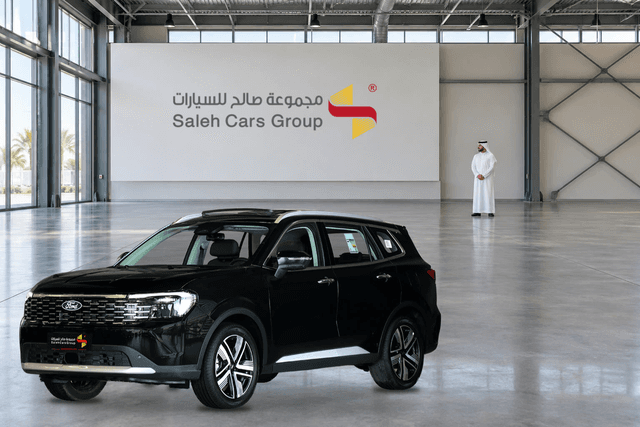
Ford Models: Taurus, Territory, Everest and Trims Guide
Table of Contents:
|
There are six Ford models listed on our site: the Taurus sedan, the Territory, Everest and Explorer SUVs, and the Ranger and F150 pickups. This guide explains how they differ in size, engine, seats and drive system, which kind of buyer in Saudi Arabia each model suits, and how to compare trims before you decide, and you can browse every listed car of the brand on the Ford cars page. Ford is a car brand of American origin.
Ford Models on Our Site: A Quick Comparison Table
The table below summarises the main specs of one listed trim of each model. These specs belong to the trim named in the table and vary by trim and model year, so check the car page for the exact specs of the trim you are interested in. A dash means the value is not stated in the trim data.
| Model | Type | Listed trim | Engine | Power (HP) | Torque (Nm) | Seats | Drive |
| TAURUS | Sedan | Ambiente New Shape 2026 | 2 L, 4 cylinders, petrol | 239 | — | 5 | Front-wheel |
| Territory | SUV | Titanium 2026 | 1.8 L, 4 cylinders | 190 | 320 | 5 | Front-wheel |
| Everest | SUV | XLS Diesel 2025 | 2 L, 4 cylinders, diesel | 168 | 405 | 7 | Four-wheel |
| EXPLORER | SUV | Active Comfort 4WD 2025 | 2.3 L, petrol | 300 | 420 | 7 | Permanent four-wheel |
| F150 | Pickup | Reg Cab 4x4 XLT 5.0L V8 Mod to Raptor R 2023 | 5 L, V8, petrol | 700 | — | 3 | Four-wheel |
| Ranger | Pickup | Wildtrak 2024 | 2 L, 4 cylinders, diesel, twin turbo | 207 | 500 | 5 | Four-wheel |
All the listed trims have an automatic transmission. Their stated fuel economy is: Taurus 15.5 km/L, Territory 15.6 km/L, Everest 14.2 km/L, Explorer 12.7 km/L, Ranger 14.6 km/L and F150 9.7 km/L.
Ford Taurus: A Sedan for the City and Daily Driving
The Ford Taurus (TAURUS) is the only sedan among the Ford models on our site and is listed for 2025 and 2026. The trim in the table, Ambiente New Shape 2026, has a 2 L four-cylinder petrol engine with 239 HP, an automatic transmission, front-wheel drive, five seats, 18 inch wheels and a stated 15.5 km/L. Its equipment includes forward collision warning, blind-spot information, a smart entry system, fabric seats and single-zone automatic air conditioning.
The Taurus suits buyers who want a five-seat sedan for daily driving in the city and for a small family. For 2026 the site lists, alongside the usual trims, New Shape trims with the same names: Ambiente, Trend and Titanium, so confirm which shape you want before comparing, as specs and equipment differ from one trim to another.
Ford Territory: A Five-Seat SUV for Families and the City
The Ford Territory is a five-seat SUV listed for 2025 and 2026. The Titanium 2026 trim named here has a 1.8 L four-cylinder engine with 190 HP and 320 Nm, an automatic transmission, front-wheel drive, 19 inch wheels and a stated 15.6 km/L.
This trim’s equipment includes a panoramic roof, ventilated front seats, leather seats, a powered tailgate, remote start and a wireless charger, as well as forward collision warning, blind-spot information and smart entry. The Territory suits a small family and buyers who spend most of their time in the city and want a higher seating position than a sedan, and the ventilated seats help in the hot summer months.
Everest and Explorer: Seven Seats for Large Families and Travel
The Ford Everest is a seven-seat SUV listed for 2025 in XLS, XLS Diesel, XLT and Limited trims. The XLS Diesel trim has a 2 L four-cylinder diesel engine with 168 HP and 405 Nm, an automatic transmission, four-wheel drive, 18 inch wheels and a stated 14.2 km/L, and its equipment includes a rear camera, an electric parking brake and fabric seats.
The Ford Explorer is a seven-seat SUV listed for 2025 in Active 4WD and Active Comfort 4WD trims. The latter has a 2.3 L petrol engine with 300 HP and 420 Nm, an automatic transmission, permanent four-wheel drive, 20 inch wheels and a stated 12.7 km/L, with a panoramic roof, adaptive cruise control, heated front seats, blind-spot information and smart entry.
Both models suit large families and long trips between cities, since both have seven seats and four-wheel drive in the trims named here. The clearest difference between them in these trims is fuel type and power: the Everest has a diesel engine, while the Explorer has a more powerful petrol engine with more comfort equipment.
Ranger and F150: Pickups for Work and Rough Roads
The Ford Ranger is a pickup listed for 2024 in the Wildtrak trim, with a 2 L four-cylinder twin-turbo diesel engine, 207 HP, 500 Nm, an automatic transmission, four-wheel drive, five seats, 18 inch wheels and a stated 14.6 km/L, plus adaptive cruise control, smart entry and dual-zone automatic air conditioning. It suits buyers who need a cargo bed and a cabin for five people for work and desert trips.
The listed Ford F150 is a 2023 model in the Reg Cab 4x4 XLT 5.0L V8 Mod to Raptor R trim, meaning a single-cab pickup modified in Raptor style, as the trim name indicates. It has a 5 L supercharged V8 petrol engine, 700 HP, an automatic transmission, four-wheel drive, three seats, 17 inch wheels and a stated 9.7 km/L, and its drive modes include normal, sand, snow, mud and sport. It suits sand and off-road enthusiasts who want high power and do not need rear seats.
How to Compare Ford Model Trims Before Buying?
The model name alone is not enough, as trims differ in engine, fuel type, equipment and wheel size. These are the trims of each model as listed on the site:
- Taurus: Ambiente, Trend and Titanium for 2025 and 2026, plus New Shape trims for 2026: Ambiente, Trend and Titanium.
- Territory: Ambiente, Trend and Titanium for 2025 and 2026, and Titanium Dark Edition for 2025.
- Everest: XLS, XLS Diesel, XLT and Limited for 2025.
- Explorer: Active 4WD and Active Comfort 4WD for 2025.
- Ranger: Wildtrak for 2024.
- F150: the Reg Cab 4x4 XLT 5.0L V8 Mod to Raptor R trim for 2023.
- Define your use first: number of passengers, city driving or travel, and whether you need four-wheel drive or a cargo bed.
- Fix the model year and then compare trims within it; the Taurus 2026, for example, is listed in the usual shape and the New Shape.
- On each car page, compare fuel type, power, torque, drive system, number of seats and wheel size.
- Review safety and driver-assistance systems such as forward collision warning, blind-spot information and adaptive cruise control, and do not assume they come with every trim.
- Pay attention to comfort features that matter in the heat: ventilated seats, the type of air conditioning and seat material.
For the inspection, signing and handover steps after choosing a trim, see the new car buying guide with steps before signing and handover.
How Do You Find the Price of the Ford Territory, Taurus and Other Models?
This guide does not give price figures because they differ by trim and year and change over time. The current price of each trim is shown on its own car page, and you can find current deals on the current car offers page. If you are considering buying in instalments, use the car finance calculator to estimate the instalment for the trim you chose.
The listed Ford models can be viewed at the Saleh Cars branches, and you can find their addresses on the contact and branch locations page or via the unified number 920022122.
Frequently Asked Questions About Ford Models
What is the price of the Ford Territory 2026?
The price differs between the Ambiente, Trend and Titanium trims; the current price of each trim is shown on its car page, and current deals are on the offers page.
What are the Ford Territory 2026 trims?
The site lists the Territory 2026 in Ambiente, Trend and Titanium trims, and a Titanium Dark Edition trim is listed for 2025. The Titanium 2026 trim named here has a panoramic roof, ventilated front seats and a powered tailgate.
What is the difference between the Ford Taurus 2025 and 2026?
The site lists the Taurus 2025 in Ambiente, Trend and Titanium trims, and for 2026 it adds New Shape trims with the same names. Compare the two trim pages to see the differences in specs and equipment.
What is the difference between the Ford Everest XLS and XLS Diesel?
Both trims are listed for 2025. The XLS Diesel trim runs on a 2 L diesel engine with 168 HP and 405 Nm, while the XLS specs should be checked on its own page because the engine varies by trim.
Which Ford models have seven seats?
In the trims named in this guide, the Everest and Explorer have seven seats, while the Taurus, Territory and Ranger have five seats, and the listed F150 has three seats.
Conclusion
The Ford models on our site cover different needs: the Taurus for the city and daily driving, the Territory for a small family, the Everest and Explorer for large families and travel, and the Ranger and F150 for work and rough roads. Define your use, compare the trims and their specs on the car pages, and follow everything listed for the brand on the Ford cars page.

Best Economical Family Car 2026: 7-Seaters by Fuel Economy
Table of Contents:
|
If you are looking for the best economical family car with seven seats, this list ranks ten 7-seat cars listed on our site by the fuel-economy figure stated on their pages, from the most kilometres per litre to the least. The Toyota VELOZ GLX 2026 leads with 18.6 km/L, followed by the Hyundai Stargazer and the Suzuki Ertiga, then we set out differences in engine, power and body type.
How Did We Rank the Economical Family Cars in This List?
We ranked the cars by one stated criterion: the fuel-economy figure in kilometres per litre as shown on the listing of the representative trim of each model on our site, with the highest figure first. This ranking does not measure comfort, space or equipment, and it does not mean that any single car is the best on the market.
- The car has seven or more seats in its listing, and its listing is active on the site.
- It runs on petrol, diesel or hybrid power according to its listing; we left out listings classed as electric and listings that show no consumption figure.
- Where two cars share the same figure, we list them one after the other in the order they appear on the site.
The list reflects what is listed on salehcars.com as of November 2026. The specs are those of the named trim and vary by trim and model year, and each car page shows the exact trim and its current price. To understand the km/L figure and how to work out the fuel you need, see the guide to the fuel economy label and calculating fuel use.
What Is the Best Economical Family Car With Seven Seats on Our Site?
By the stated consumption figure, the Toyota VELOZ GLX 2026 comes first with 18.6 km/L, and the list ends with the Kaiyi X7 and the Mitsubishi Xpander Cross at 15.7 km/L each. The table brings together the trim each figure belongs to and its main specs, ordered from the highest figure.
| Car | Trim and model year | Type | Engine | Power | Gearbox (transmission) | Fuel economy |
| Toyota VELOZ | GLX 2026 | MPV | 1.5 L | 104 HP | - | 18.6 km/L |
| Hyundai Stargazer | SMART 2025 | MPV | 1.5 L | 115 HP | Automatic | 17.8 km/L |
| Suzuki Ertiga | GLX 2025 | MPV | 1.5 L | 103 HP | Automatic | 17.7 km/L |
| Kia Carens | GL 2026 | MPV | 1.5 L | 115 HP | CVT | 16.6 km/L |
| Jetour X70 | Comfort 2026 | SUV | 1.5 L turbo | 154 HP | Automatic | 16.5 km/L |
| Soueast S07 | LUXURY 2026 | SUV | 1.6 L turbo | 197 HP | Automatic | 16.0 km/L |
| Nissan X-TRAIL | S 2WD 7 seats 2026 | SUV | 2.5 L | 181 HP | CVT | 15.9 km/L |
| Soueast S09 | Luxury 2026 | SUV | 2 L | 254 HP | Automatic | 15.9 km/L |
| Kaiyi X7 | Version3 2025 | SUV | 1.6 L turbo | 183 HP | Automatic | 15.7 km/L |
| Mitsubishi Xpander Cross | Premium 2026 | MPV with crossover styling | 1.5 L | 103 HP | Automatic | 15.7 km/L |
All the trims in the table have seven seats and front-wheel drive and run on petrol according to their listings, and a dash (-) means the listing does not state the value.
Which 7-Seat Family MPVs Use the Least Petrol?
The most economical MPVs in the list by their stated figures are the VELOZ, then the Stargazer, then the Ertiga, all with 1.5 L engines and between 103 and 115 HP, and they suit city errands and daily family transport.
The Toyota VELOZ in the GLX 2026 trim has a 1.5 L petrol engine producing 104 HP and front-wheel drive, with fuel economy of 18.6 km/L, the highest figure in the list. The model is listed for 2025 and 2026, and the listing for this trim does not state the transmission type, so confirm it on the car page.
The Hyundai Stargazer in the SMART 2025 trim has a non-turbo 1.5 L engine producing 115 HP, with an automatic gearbox and front-wheel drive, and fuel economy of 17.8 km/L, a small gap from the VELOZ with slightly more power.
The Suzuki Ertiga in the GLX 2025 trim has a 1.5 L engine producing 103 HP and an automatic gearbox, with fuel economy of 17.7 km/L, a figure very close to the Stargazer.
The Kia Carens in the GL 2026 trim has a 1.5 L engine producing 115 HP and a CVT transmission, with fuel economy of 16.6 km/L, and the model is listed for 2025 and 2026 in more than one listing, so compare trims before choosing.
The Mitsubishi Xpander Cross in the Premium 2026 trim has a 1.5 L engine producing 103 HP and an automatic gearbox, with fuel economy of 15.7 km/L, and it combines crossover looks with a seven-seat MPV cabin.
Which Seven-Seat Family SUV Is the Most Fuel Efficient?
Among the SUVs in the list, the Jetour X70 records the highest stated figure at 16.5 km/L, followed by the Soueast S07, then the Nissan X-TRAIL and the Soueast S09 with the same figure, then the Kaiyi X7. These cars usually give you more power than the MPVs, in exchange for a slightly lower consumption figure.
The Jetour X70 in the Comfort 2026 trim has a 1.5 L turbo engine producing 154 HP, an automatic gearbox and front-wheel drive, with fuel economy of 16.5 km/L, the highest figure among the SUVs here.
The Soueast S07 in the LUXURY 2026 trim has a 1.6 L turbo engine producing 197 HP and an automatic gearbox, with fuel economy of 16.0 km/L, so it pairs more power with a figure close to the Jetour X70.
The Nissan X-TRAIL in the S 2WD 7 seats 2026 trim has a 2.5 L engine producing 181 HP and a CVT transmission, with fuel economy of 15.9 km/L, and its engine has the largest capacity in the list.
The Soueast S09 in the Luxury 2026 trim has a 2 L engine producing 254 HP, the most powerful in the list, and its consumption figure is 15.9 km/L, the same as the X-TRAIL.
The Kaiyi X7 in the Version3 2025 trim has a 1.6 L turbo engine producing 183 HP and an automatic gearbox, with fuel economy of 15.7 km/L.
How Do You Choose Between an Economical Family MPV and SUV?
Choose an MPV if most of your driving is city errands and family transport and you want the highest stated consumption figure, and choose an SUV if you need more power for intercity travel with the whole family on board, while accepting a slightly lower figure.
| What you need | Best match in the list | What the listings show |
| Highest stated consumption figure | VELOZ, Stargazer, Ertiga | Between 17.7 and 18.6 km/L with 1.5 L engines |
| A CVT transmission | Carens, X-TRAIL | Both listed trims have a CVT |
| More power for travel with a full load | S09, S07, X7 | Between 183 and 254 HP |
| A small-capacity turbo engine | X70, S07, X7 | 1.5 and 1.6 L turbo |
| Crossover looks with an MPV cabin | Xpander Cross | A seven-seat MPV with crossover styling |
Remember that real consumption depends on driving style, load and air conditioning use, so use the stated figure to compare cars rather than to predict your own fuel use exactly. If you have not yet decided whether you need a third row, read the guide to choosing a family car with five or seven seats, then test the third row yourself during the test drive.
To compare economical cars in general, including smaller cars, see our article on the best fuel-efficient cars of 2026.
How Much Does an Economical Family Car 2026 Cost?
The price varies by model, trim and model year, so we do not give figures here; the current price of each trim is shown on the car page itself, and current offers are on the site’s offers page. You can compare models from the list of all new cars on offer, and if you are considering instalments, use the car finance calculator to estimate the instalment for the trim you have chosen.
You can ask about the listed models at the Saleh Cars Group branches or through the unified number 920022122, and you should ask for a test drive of the exact trim you intend to buy.
Frequently Asked Questions About Economical Family Cars
What is the most economical 7-seater on petrol?
If the criterion is the stated consumption figure in our site’s listings, the Toyota VELOZ GLX 2026 tops the list with 18.6 km/L, followed by the Hyundai Stargazer at 17.8 and then the Suzuki Ertiga at 17.7 km/L.
What is the fuel consumption of the Kia Carens 7-seater?
The GL 2026 trim listed on our site shows fuel economy of 16.6 km/L, with a 1.5 L engine producing 115 HP and a CVT transmission. The figure may differ between trims and years.
Is the Nissan X-TRAIL with 7 seats fuel efficient?
The S 2WD 7 seats 2026 trim shows 15.9 km/L, a figure close to the SUVs with smaller engines in the list despite its 2.5 L engine producing 181 HP.
Does the Mitsubishi Xpander Cross have 7 seats?
Yes, the Premium 2026 trim listed on our site has seven seats, with a 1.5 L engine producing 103 HP, an automatic gearbox and fuel economy of 15.7 km/L.
Why are electric cars not included in this ranking?
Because the comparison here is between fuel-powered cars by their km/L figure, and an electric car’s consumption is not compared in the same way, so we left listings classed as electric out of the list.
Conclusion
If the stated fuel-economy figure is your first criterion, the VELOZ, Stargazer and Ertiga MPVs lead the 7-seat cars listed on our site, and if you need more power, SUVs such as the Jetour X70 and the Soueast S07 and S09 stay close in their figures. Compare the exact trim on the car page, and try it with your family before deciding.

Driving License Issuance in Saudi Arabia: First-Time Guide
Table of Contents:
|
Driving license issuance in Saudi Arabia for the first time starts with booking a training appointment at a driving school authorized by the General Traffic Department through the Absher platform, then passing the training and the required tests to receive the license. The official service page requires the applicant to be at least eighteen years old and to have a medical examination from a certified medical center.
What Is the Driving License Issuance Service on Absher and Who Can Use It?
The driving license issuance service is an electronic Ministry of Interior service that lets citizens and residents book or update training appointments at driving schools through Absher, then issue the license after passing the training and tests. This is what the driving license issuance service page on the National Portal states. The page lists the service duration as immediate and says it is offered through the website portal and the iOS and Android apps, in Arabic and English.
The Absher service guide defines the beneficiary as a citizen or resident, and the National Portal page lists youth, women and persons with disabilities among its target attributes. Note that the driving license is the driver’s own document and differs from the vehicle registration (Istimara), which belongs to the vehicle, so do not confuse the two services when searching on Absher.
This guide relies on the service page on the National Portal and the service guide on Absher as they appeared when we reviewed them in November 2026. Procedures or requirements can change at any time, so confirm the latest steps on the official platform before you apply.
What Are the Conditions for a First Driving License?
The service publishes three conditions: the applicant must be at least eighteen years old, must confirm a booked appointment at a driving school, and must have a medical examination from a certified medical center. The required documents tab adds payment of the license issuance fees through the government payments service. Use the following table as a checklist before logging in to Absher:
| Condition or Document as Shown in Official Sources | What to Check Before Starting |
| The applicant is at least eighteen years old | Your recorded date of birth, because you will enter it with your ID number when booking |
| Confirmation of a booked appointment at a driving school | That the booking confirmation message arrived and the appointment details are saved |
| A medical examination from a certified medical center | That the center where you will be examined is certified |
| Payment of the license issuance fees through government payments | The amount the platform shows for your case when you submit the request |
The required documents tab does not mention uploading photos or other papers besides paying the fees, so do not rely on circulated lists that add unpublished requirements until you confirm them with the school or the traffic department. We do not state fee amounts here, because they are shown on the platform when you submit the request and may change.
How Do I Book a Driving School Appointment on Absher?
You book a driving school appointment from your Absher account through the “Issue Driving License” service under traffic services. The following steps are taken from the service page on the National Portal:
- Log in to the Absher platform.
- Select “My Services”.
- Choose “Traffic” from the list of services.
- Select the “Issue Driving License” service.
- Click “Proceed to Service”.
- Enter the national ID number and date of birth.
- Select the service type and region.
- Select the branch.
- Select the appointment time.
- Review the appointment details.
- You will receive a message confirming your appointment booking.
The service description says it lets you book or update a training appointment, so if you need to change the appointment, return to the same service. If the menus look different in your interface, look for the service name under traffic services, and do not choose a similarly named service such as driving license renewal or vehicle registration renewal.
Keep the confirmation message and check the branch and time in it before you go. Never share your Absher password or verification code with anyone who offers to book on your behalf.
The Driving License Medical Exam: What Do Official Sources Say?
The official sources mention the medical examination as a service condition in a single phrase: “a medical examination through certified medical centers”. Neither the National Portal page nor the Absher guide details what the examination covers, how long it stays valid, or whether it comes before or after booking.
We therefore suggest the following as general practical tips, not official rules:
- Ask the center before you go whether it is certified for this purpose and what it needs from you on the day.
- If you wear glasses or contact lenses, bring them and ask the center how they affect the examination.
- If you have a health condition that may affect driving, the reference for assessing it is the certified medical center and the competent authority, not general websites.
- Keep proof that the examination was done, and ask the school whether it needs a specific proof of it.
What Happens After Booking? Training and the Driving License Test
After booking, you attend training at the authorized driving school, then pass the required tests, after which the license can be issued according to the service description. The official pages we relied on do not detail the training length, the types of tests, or how the license is collected, so ask the school where you booked about these details.
The following table summarizes the stages as the official sources mention them, without a time order they do not state:
| Stage | Channel | What the Official Source Says |
| Medical examination | A certified medical center | A condition in the service requirements |
| Booking or updating the training appointment | Absher platform: My Services, then Traffic | Service steps on the National Portal |
| Training and tests | A driving school authorized by the General Traffic Department | Service description |
| Paying the issuance fees | Government payments | Required documents tab |
| Issuing the license | After passing the training and tests | Service description |
Common mistakes that delay first-time applicants include choosing the wrong service, going to the appointment without checking the confirmation message, or assuming that booking an appointment means the license has been issued. Booking is the start of the path; the license is issued after passing the training and tests.
After Receiving Your License: What Does a New Driver Need?
Once you receive the license, your role as a driver begins, and three things matter most: the license validity, traffic violations, and the status of the car you drive.
The National Portal offers a driving license information service to check your license validity electronically. When it nears expiry, you move to a service separate from the first issuance, which we explain in the guide to driving license renewal on Absher and its requirements.
As you start driving, it helps to know how to check, pay and dispute traffic violations. If you will drive a car registered in the name of a family member, read about vehicle driving authorization on Absher and its steps before you take it out.
If you plan to buy your first car, start with the new car buying guide with steps before signing and delivery, which explains setting a budget, the test drive and inspecting the car before delivery.
Frequently Asked Questions About Getting a Driving License for the First Time
What is the minimum age for a driving license in Saudi Arabia?
The service page requires the applicant to be at least eighteen years old. This condition appears on both the National Portal and the Absher service guide.
Can a resident get a driving license through Absher?
Yes. The service states that it lets citizens and residents book or update training appointments, then issue the license after passing the required training and tests.
How much are the fees for a first driving license?
We do not state amounts here. The required documents tab says the license issuance fees are paid through government payments, and the amount appears on the platform when you submit the request. For anything related to the driving school or the medical center, ask that party directly.
Can I change my driving school appointment after booking it?
The service description says it lets you book or update training appointments electronically through Absher. Enter the same service to update the appointment and follow what it shows you.
How do I contact the competent authority if booking does not go through?
The National Portal page lists the phone number 966114011111 and the email info@moi.gov.sa, and the Absher guide lists the phone number 9200343222 and the email help@absher.sa. The guide also mentions contacting the nearest General Traffic Department office or calling 911.
Conclusion
To get your first driving license: make sure you are at least eighteen years old, complete the medical examination at a certified center, book the training appointment through the “Issue Driving License” service on Absher, then pass the training and tests and pay the issuance fees through government payments. Check the official service page before applying, because requirements may be updated.

MG Models 2025 and 2026: Trims, Specs and Buying Guide
Table of Contents:
|
The MG models listed on our site that this guide covers are five: a small hatchback, the MG 3; three sedans, the MG 5, MG GT and MG 7; and one crossover, the MG ZS. This guide explains how they differ in size, engine and equipment, which buyer each model suits, and how to compare trims before buying, and you can browse every car listed for the brand on the MG cars page of our site. MG is a car brand of British origin that is owned today by a Chinese group.
MG Models on Our Site and Their Specs
The table below summarises one listed trim of each model. The specs are taken from the car pages on our site; they belong to the trim shown and vary by trim and model year, so open the car page to check the trim you are interested in before you decide.
| Listed trim | Type | Engine | Power | Torque | Transmission | Drive | Seats |
| MG 3 STD 2025 | Hatchback | 1.5 L, 4 cylinders | 109 HP | 140 Nm | CVT | Front | 5 |
| MG 5 STD 2025 | Sedan | 1.5 L, 4 cylinders | 118 HP | 150 Nm | CVT | Front | 5 |
| MG GT COM CVT 2026 | Sedan | 1.5 L, 4 cylinders | 118 HP | 150 Nm | CVT | Front | 5 |
| MG 7 STD 2025 | Sedan | 1.5 L turbo, 4 cylinders | 185 HP | 300 Nm | Automatic | Front | 5 |
| MG ZS LUX 2025 | Crossover | 1.5 L, 4 cylinders | 112 HP | 150 Nm | CVT | Front | 5 |
The table shows that all the listed trims use a 1.5 L four-cylinder petrol engine with front-wheel drive and seat five. The biggest differences come from the turbocharger in the MG 7, from the body style, whether hatchback, sedan or crossover, and from the level of interior equipment in each trim.
For the City and Daily Use: MG 3, MG 5 and MG GT
This group suits drivers who spend most of their time in the city and want a car that is easy to park and use every day, whether for commuting or short family errands.
The MG 3 is the smallest of the models in this guide, with a hatchback body that makes moving and parking in busy streets easier. The listed STD 2025 trim has 109 HP and 140 Nm of torque with a CVT, fuel economy stated on its page as 17.8 km/L, and 15 inch wheels. Its equipment includes fabric seats, electronic air conditioning, a 10.25 central touchscreen, a 7 instrument display and a rear camera, along with iPhone and Android app projection and Bluetooth.
The MG 5 is a practical sedan for a small family, listed for 2025 in two trims: Standard and Standard New Shape. The trim in the table has 118 HP, 150 Nm of torque, a CVT and 16 inch wheels, with fabric seats, electronic air conditioning and a 10 central touchscreen with iPhone and Android apps and Bluetooth. Families will note that the listing mentions an ISOFIX child seat mounting system.
The MG GT is a sedan with the same 1.5 L engine in the listed trim, producing 118 HP and 150 Nm of torque on 16 inch wheels. It stands out for its range of trims across 2025 and 2026, including a CVT version and a DCT version of the 2026 Comfort (COM) trim. The listed trim comes with push-button start, a leather steering wheel, 4 speakers, a 10.1 touchscreen and a rear camera, along with iPhone and Android apps and Bluetooth.
For Long Trips and More Power: MG 7
The MG 7 is the most powerful of the trims shown in the table: the engine of the STD 2025 trim is a 1.5 L turbo producing 185 HP and 300 Nm of torque with an automatic transmission, and its page states fuel economy of 19.3 km/L. This higher torque helps when overtaking on highways and when travelling between cities fully loaded.
The MG 7 suits those who spend long hours on the road with their family, as the listing mentions air conditioning vents for the second row, leather seats, a leather-wrapped steering wheel, a smart entry system and push-button start. The cabin has a 10.25 inch central touchscreen and a 12.3 inch digital instrument display with Apple CarPlay and Android Auto, and it rides on 18 inch wheels. It is listed in two trims for 2025: STD and DEL.
A Crossover With a Higher Driving Position: MG ZS
The MG ZS is the only crossover among the models covered in this guide, and it suits those who prefer sitting higher than in a sedan while keeping a size that works in the city. The listed LUX 2025 trim has 112 HP, 150 Nm of torque and a CVT, fuel economy stated on its page as 17.2 km/L, and 17 inch wheels.
This trim carries equipment that families notice, including a panoramic sunroof, a surround-view camera, synthetic leather seats and a 10 central touchscreen, plus auto hold with an electronic parking brake and push-button start and stop. The MG ZS is listed for 2025 in three trims: NEW STD, LUX and Luxury New Shape. If rough desert trips are a priority for you, note that the listed trim is front-wheel drive, so it is better suited to paved roads.
How Do You Compare MG Trims Before Buying?
A single model may come in more than one trim, and trims differ in transmission, equipment and exterior styling. These are the trims listed on our site for each model:
- MG 3: STD 2025.
- MG 5: STD and Standard New Shape 2025.
- MG GT: Lux and COM 2025, and COM CVT and COM DCT 2026.
- MG 7: STD and DEL 2025.
- MG ZS: NEW STD, LUX and Luxury New Shape 2025.
When comparing two trims of the same model, focus on these points:
- Transmission: a CVT feels smooth in traffic, a DCT is a dual-clutch gearbox, and the MG 7 uses a conventional automatic; try each type on a test drive.
- Model year and styling: compare the new shape trim with the earlier trim of the same model, and ask for photos of the exact trim you plan to buy.
- Seats and air conditioning: fabric, synthetic leather or leather, and rear air vents if you often carry passengers in the back.
- Camera and screens: a rear camera or a surround-view camera, and the size of the central screen and instrument display.
- Wheel size: from 15 inch on the MG 3 to 18 inch on the MG 7 across the listed trims.
Before you sign for any trim, read the new car buying guide with checks before delivery to know what to verify in the contract and when you take the car.
Buying MG Models: Price, Offers and Finance
The current price of each trim is shown on its own car page, which is why this guide gives no figures, as they change by trim and over time. To see what is currently offered on cars, browse the current offers page, and if you are thinking of buying in instalments, use the car finance calculator to estimate the monthly instalment before you apply.
The listed MG models can be viewed at the Saleh Cars Group branches, or you can ask about any trim on the unified number 920022122. For branch locations, opening hours and other ways to get in touch, open the contact and branches page.
Frequently Asked Questions About MG Models
Which MG models are listed on your site?
This guide covers five listed models: the MG 3 hatchback, the MG 5, MG GT and MG 7 sedans, and the MG ZS crossover, with model years 2025 and 2026 depending on the model and trim.
How much power does the MG 7 STD 2025 have?
According to its car page, the 1.5 L turbo engine produces 185 HP and 300 Nm of torque with an automatic transmission. Figures may differ on the DEL trim, so check that trim’s own page.
What is the difference between the MG GT COM CVT and COM DCT?
The main difference is the transmission: a CVT is a continuously variable transmission and a DCT is a dual-clutch transmission. Both trims are listed for 2026, and it is best to try both and compare their pages before choosing.
What is the price of the MG 2026?
The price differs by model and trim; the current price of each trim is on its car page, you can see what is currently offered on the offers page, and you can estimate the instalment with the finance calculator.
Is the MG ZS 2025 suitable for a family?
It seats five, and the listed LUX trim includes a panoramic sunroof, a surround-view camera and synthetic leather seats, which are useful for family use in the city and on medium-length trips.
Conclusion
The MG models listed with us cover different needs: the MG 3 for the city, the MG 5 and MG GT for daily use and small families, the MG 7 for those who want more power and longer trips, and the MG ZS for those who prefer a crossover. Compare trims on the car pages, and to see every option return to the MG cars page.

Geely Models: Compare Trims, Specs and Which One Suits You
Table of Contents:
|
The Geely models listed on our site are eight models from the 2024 and 2025 model years: two sedans, EMGRAND and Preface; two compact crossovers, GX3 PRO and Coolray; and four SUVs, STARRAY, Okavango, Tugella and Monjaro. You can browse all of them on the Geely cars page. This guide explains how they differ in size, engine, seating, drive system and equipment, which kind of buyer in Saudi Arabia each model suits, and how to compare trims before you decide.
Geely Models on Our Site: Quick Comparison Table
Geely is a Chinese car brand. The table below summarises the specifications of the listed trim of each model as shown on its car page on our site, such as Coolray GK 2025 and Monjaro GK 4WD 2024. These specifications vary by trim and model year, so check the car page for the exact specifications of the trim you want. A dash means the value is not stated in the listing data.
| Model | Type | Engine | Power | Torque | Seats | Drive |
| Coolray | Compact crossover | 1.5L turbo | 172 HP | 290 Nm | 5 | FWD |
| EMGRAND | Sedan | 1.5L | 122 HP | 180 Nm | 5 | FWD |
| STARRAY | SUV | 2L turbo | 218 HP | 325 Nm | 5 | FWD |
| Okavango | Family SUV | 2L | 218 HP | 325 Nm | 7 | FWD |
| Tugella | Coupe SUV | 2L | 238 HP | 350 Nm | 5 | - |
| Monjaro | SUV | 2L turbo | 235 HP | 350 Nm | 5 | 4WD |
| GX3 PRO | Small crossover | 1.5L | - | 140 Nm | 5 | FWD |
| Preface | Sedan | 2L turbo | 215 HP | 325 Nm | 5 | FWD |
All engines in the table run on petrol and have four cylinders, and the transmission is automatic in every listed trim except GX3 PRO, which uses a CVT. The clearest differences between the models are engine size (1.5 or 2 litres), whether there is a turbo, the number of seats and the drive system.
Geely Sedans for Daily Driving and Travel: EMGRAND and Preface
The Geely EMGRAND is a five-seat sedan. Its listed GK 2025 trim has a 1.5-litre engine with 122 HP and 180 Nm of torque, an automatic transmission, front-wheel drive and 17-inch wheels, with fuel economy of 16.6 km/L according to the listing data. Its equipment includes smart entry, a rear camera, leather seats, automatic air conditioning with a rear vent and an electric parking brake. It suits buyers looking for a practical sedan for daily city driving and the commute, and the site lists its GK and GS trims for the 2025 model year.
The Geely Preface, by contrast, is a five-seat sedan with a larger engine. Its GL 2025 trim uses a 2-litre turbo engine with 215 HP and 325 Nm of torque, an automatic transmission, front-wheel drive, 18-inch wheels and fuel economy of 18.7 km/L according to the listing. It offers normal, sport and sand drive modes, an electric sunroof with a panoramic roof, an automatic tailgate and cameras around the car. It suits buyers who want a sedan with more performance and equipment for long trips between cities.
Compact Crossovers From Geely: GX3 PRO and Coolray
The Geely GX3 PRO is a small five-seat crossover. Its listed GF 2025 trim has a 1.5-litre engine with 140 Nm of torque, a CVT, front-wheel drive, 16-inch wheels and fuel economy of 14.9 km/L, while engine power is not stated in the listing data. Its equipment includes smart entry, a rear camera, leather seats, a multifunction steering wheel and front and rear power windows. It suits buyers who want an easy car to handle in city traffic, and the site lists its GF and GK trims.
The Geely Coolray is also a five-seat compact crossover. Its GK 2025 trim has a 1.5-litre turbo engine with 172 HP and 290 Nm of torque, an automatic transmission, front-wheel drive, 18-inch wheels, a 45 L fuel tank and fuel economy of 17.8 km/L. It adds a panoramic roof, smart entry, a rear camera, push-button start and an electric parking brake. It suits individuals and small families who want a turbo engine in a compact car, and its pages include the GF, GF Plus, GK and GS BASIC trims from the 2024 and 2025 model years.
Geely Family SUVs: STARRAY and Okavango
The Geely STARRAY is a five-seat SUV. Its listed GF 2024 trim has a 2-litre turbo engine with 218 HP and 325 Nm of torque, an automatic transmission, front-wheel drive and fuel economy of 14.9 km/L. Its listed equipment includes adaptive cruise control, ventilated seats, an electric sunroof with a panoramic roof, smart entry and cameras around the car. It suits families who travel between cities and care about driver assistance, and its listed trims are GF, +GF and GK 2WD for the 2024 model year.
The Geely Okavango comes with seven seats in its listed GF 2025 trim, the only seven-seat trim among those covered in this guide. It has a 2-litre engine with 218 HP and 325 Nm of torque, an automatic transmission, front-wheel drive, 19-inch wheels and fuel economy of 14.4 km/L. Its equipment includes ventilated leather seats, power adjustment for the driver and passenger seats, ISOFIX child seat anchors, a sunroof with a panoramic roof and cameras around the car. It suits larger families who need a third row of seats, and the site lists its GF and GK PREMIUM trims.
Tugella and Monjaro: More Power and Sand Drive Modes
The Geely Tugella is a five-seat SUV with a coupe design. Its listed GF 2025 trim has a 2-litre engine producing 238 HP and 350 Nm of torque, the highest power figure in this guide’s table, with an automatic transmission, 20-inch wheels and fuel economy of 14.1 km/L. It offers sport, normal, sand and snow drive modes, blind spot alerts, ventilated and heated front seats, a wireless phone charger and cameras around the car. It suits buyers who want more performance and a sporty design in a five-seat family car, and its listed trims are GF for 2025 and GF+ for 2024.
The Geely Monjaro is a five-seat SUV, and its listed GK 4WD 2024 trim is the only four-wheel-drive trim in this guide, with a 2-litre turbo engine delivering 235 HP and 350 Nm of torque, an automatic transmission, 19-inch wheels, a 62 L fuel tank and fuel economy of 13.2 km/L. Its drive modes are sport, normal, sand, snow and mud, and its equipment includes forward collision warning, a sunroof with a panoramic roof, smart entry and remote start. It suits buyers who travel often or occasionally head onto sandy roads and want four-wheel drive, and its two listed trims are GF 4WD and GK 4WD for the 2024 model year.
How Do You Compare Geely Trims Before Buying?
Geely trims on our site carry codes such as GF, GK, GS and GL, and the equipment and some specifications change from one trim to another and from one model year to another, so do not rely on the model name alone when comparing. These are the listed trims for each model:
- Coolray: GF, GF Plus, GK and GS BASIC.
- EMGRAND: GK and GS.
- STARRAY: GF, +GF and GK 2WD.
- Okavango: GF and GK PREMIUM.
- Tugella: GF and GF+.
- Monjaro: GF 4WD and GK 4WD.
- GX3 PRO: GF and GK.
- Preface: GL.
- Define your main use: daily city driving, a large family, long trips or sandy roads.
- Open the page of each trim and compare engine size, power, torque, transmission and drive system.
- Compare the equipment that really matters to you, such as cameras, a panoramic roof, ventilated seats and driver assistance.
- Pay attention to the model year, as the same trim may be listed for more than one year with different equipment.
- Compare the wheel size, fuel economy and fuel tank capacity stated on each page.
For the general steps before signing and taking delivery, read the step-by-step new car buying guide.
How Do You Find the Price of a Geely and Buy It?
The price of each trim appears on its own car page and changes with the trim, the model year and current offers, which is why this guide does not quote any prices. Follow the current car offers to see what covers Geely models, and use the car finance calculator to estimate the instalment before applying for finance.
The listed models can be viewed at the Saleh Cars Group branches, whose addresses are on the contact and branches page, or via the unified number 920022122. Before visiting, note the trim and model year you want so the comparison is clear.
Frequently Asked Questions About Geely Models
What is the difference between the Geely GX3 PRO and the Geely Coolray?
Both are five-seat crossovers with a 1.5-litre engine, but the Coolray GK 2025 has a turbo engine with 172 HP and 290 Nm of torque and an automatic transmission, while the GX3 PRO GF 2025 has 140 Nm of torque, a CVT and 16-inch wheels.
What is the difference between the Geely Preface and the Geely EMGRAND 2025?
Both are five-seat front-wheel-drive sedans, but the Preface GL 2025 has a 2-litre turbo engine with 215 HP and several drive modes, while the EMGRAND GK 2025 has a 1.5-litre engine with 122 HP, and the site lists its GK and GS trims.
Which Geely models come with seven seats?
Among the trims covered in this guide, the Okavango GF 2025 is the one with 7 seats, while the other models have five seats in their listed trims. Confirm the number of seats on the page of the trim you want.
Is there a Geely model with four-wheel drive?
Yes, the Monjaro in its GF 4WD and GK 4WD trims for the 2024 model year, and the GK 4WD trim offers sand, mud and snow drive modes alongside the normal and sport modes.
How much is the Geely Tugella 2025 and the other Geely models?
The price varies by trim and model year, and you will find it up to date on each car page and on the offers page; you can estimate the instalment with the finance calculator before applying.
Conclusion
The Geely models on our site are split between two sedans (EMGRAND and Preface), two compact crossovers (GX3 PRO and Coolray) and four SUVs, including the seven-seat Okavango and the four-wheel-drive Monjaro. Define your use first, then compare trims and model years on their pages, and browse all models on the Geely cars page.